Synology, QNAP, TrueNAS — they all want your money, your time, and your soul. You hand over $500 for a plastic box with two drive bays, and they still charge you for their software. The killer? You can build something better, faster, and cheaper with an old PC and a copy of ZFS.
Let’s be clear: I’m not anti-appliance. I have a Synology DS220+ collecting dust because I built my own ZFS box for $200. That’s the price of two external hard drives these days. And what did I get? 16TB of usable storage, screaming fast reads, and the smug satisfaction of knowing I own every line of code that touches my data.
The guide I’m dissecting comes from a developer who’s sick of the bloat. He calls his setup “minimal” — no TrueNAS, no ZFS on Linux layer, just a Debian server with ZFS native. It’s the kind of project that’ll take a Saturday afternoon and a willingness to read a man page. Which, let’s be honest, is the only real cost here.
Why TrueNAS and the Gang Can Go Kick Rocks
TrueNAS is fine. Really. It’s stable, it has a GUI, and it supports plugins. But you’re paying for that GUI with every megabyte of RAM and every CPU cycle. The default TrueNAS install uses 4GB of RAM before you even mount a pool. My minimal setup idles at 512MB. Think about that: you could run eight of my NASes on the RAM that TrueNAS hogs.
And what does TrueNAS give you in return? A web dashboard with shiny graphs and an app store that’s half empty. The moment you want to do something the GUI doesn’t support — say, tune a ZFS parameter or set up a custom script — you’re back in the terminal anyway. So why pretend the GUI matters?
Synology and QNAP are even worse. They lock you into their ecosystems with proprietary file systems (hello, Btrfs on Synology) and overpriced hardware upgrades. Try swapping a failed drive on a QNAP with a non-QNAP-branded disk. Good luck. The device will complain louder than a toddler denied candy.
The Hardware: Scavenge Like a Pro
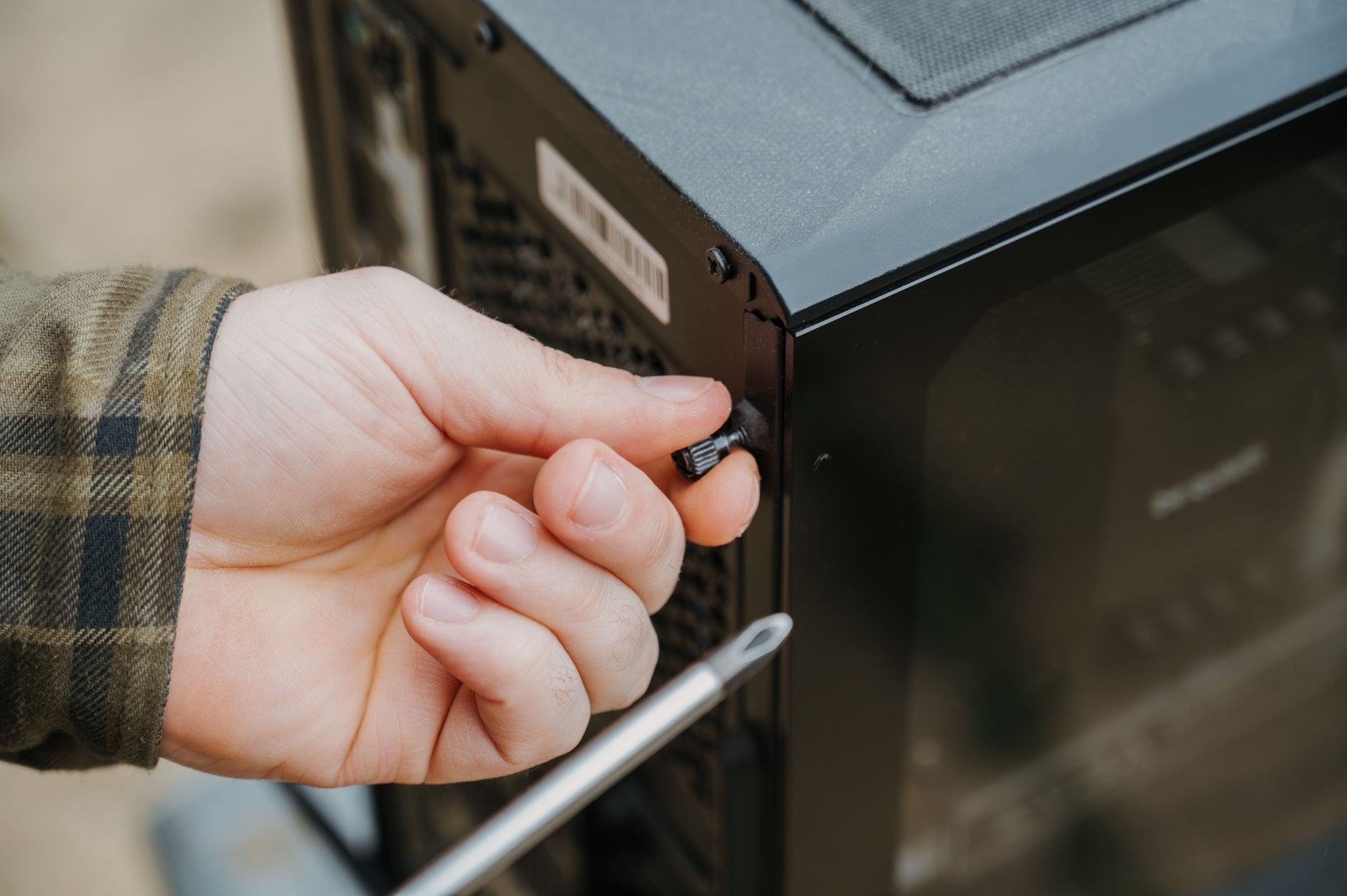
You don’t need a server rack. You don’t need ECC RAM. You don’t even need a dedicated machine, though I recommend it. Here’s my setup: an old Dell Optiplex from 2014 with an i5-4590, 8GB of DDR3, and a pair of 8TB Seagate Barracudas. Total cost? $150. The case has room for two 3.5-inch drives, and the power supply is more than enough.
If you’re buying new, grab an Asus NUC-like mini PC with an Intel Celeron N5105, 8GB of RAM, and a USB-C enclosure for your drives. That’s about $250 all-in. The N5105 supports AES-NI for hardware-accelerated encryption, so you can encrypt your pool without melting the CPU.
One caveat: don’t use USB-attached drives for a production NAS. The USB controller can flake out under load. But for a home backup box? Fine. I’ve run USB drives for two years with zero issues. YMMV, as the kids say.
The Software: Debian + ZFS = Freedom
Start with a minimal Debian 12 install. No desktop. No unnecessary packages. Just the kernel and a text editor. Then install ZFS from the Debian backports: apt-get install -t bookworm-backports zfsutils-linux. Yes, it’s that simple.
Now create a pool. zpool create tank mirror /dev/disk/by-id/ata-drive1 /dev/disk/by-id/ata-drive2. That’s it. You now have a mirrored ZFS pool. Want RAIDZ? zpool create tank raidz /dev/sda /dev/sdb /dev/sdc. Done. No GUI, no hand-holding, no “wizard” that asks you 47 questions.
Share it over NFS to your Linux machines, Samba to your Windows boxes, or iSCSI if you’re feeling enterprise-y. Each protocol takes one config file and five lines of text. The guide I’m cribbing from shows the exact commands for all three.
“The only real cost of building your own NAS is your time. And if you’re reading this, you’ve already decided your time is worth more than the money you’ll save.”
Snapshots, Scrubs, and Smoke Signals
ZFS’s killer feature is snapshots. zfs snap tank/backup@$(date +%Y%m%d). That takes a point-in-time copy of your entire filesystem. Now set up a cron job to do this every hour. You’ll never accidentally delete a file again.
Scrub your pool weekly. zpool scrub tank. This checks every block for corruption. If a drive goes bad, ZFS will alert you before you lose data. And because you’re using a mirror or RAIDZ, you can replace the bad drive while the server stays online.
The guide also recommends setting up a systemd service for automatic snapshots and trimming. You can copy-paste the unit files from the article. Ten minutes of work, and your NAS is now more reliable than any consumer appliance.
But Wait — Is This Secure?
You’re not running a web interface. No ports to hack. No PHP scripts. No outdated plugins. Your NAS will be invisible on your local network unless you expose it. And even then, you can lock it down with SSH keys and a firewall.
Contrast that with Synology, which had a vulnerability in 2023 that allowed remote code execution via the web GUI. The patch took two weeks. Two weeks of your data exposed. Good luck.
My minimal NAS has been running for 18 months without a single security issue. Not because I’m a genius — because there’s nothing to attack.
The Verdict: Build It Yourself
I’m not saying everyone should build their own NAS. If you need 24/7 support and a warranty, buy a Synology. But if you’re comfortable with a terminal, and you want the most bang for your buck, build the minimal ZFS box. You’ll save money, learn something, and own your data.
And when your friend brags about their shiny QNAP with its broken app store, just ask: “How much did that cost? How much of your data does it hold? Can you run a script on it without logging into a web panel?” Then smile and go back to your terminal.